Logo Setup
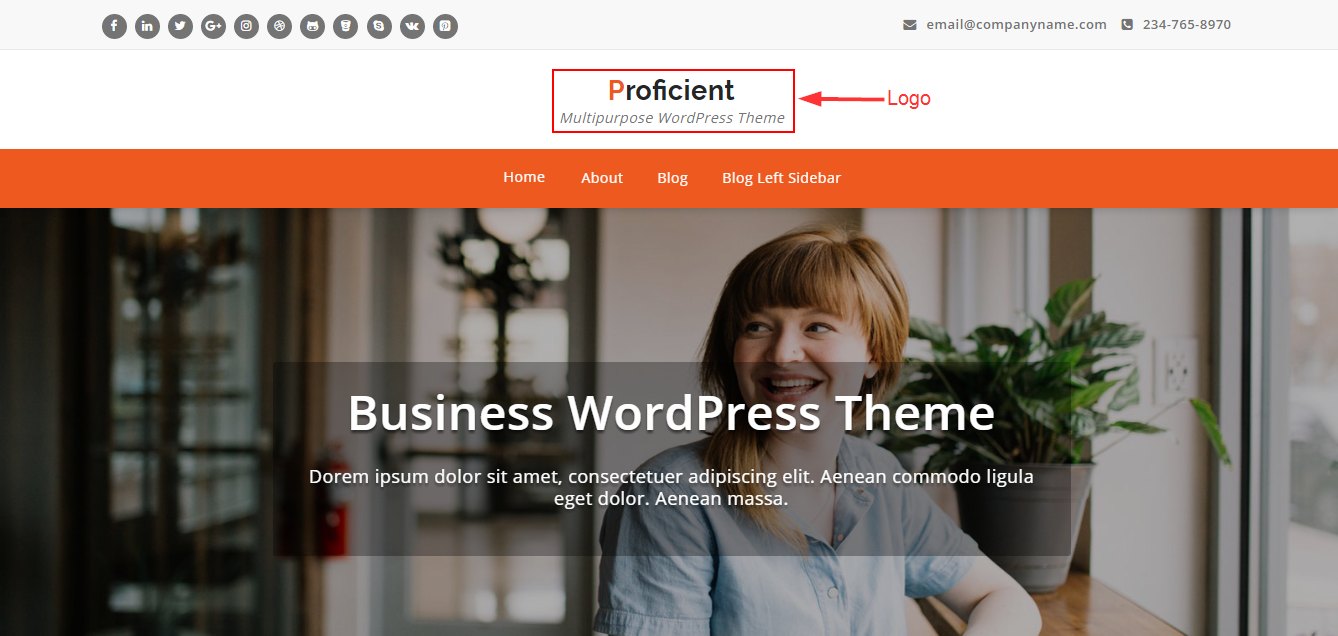
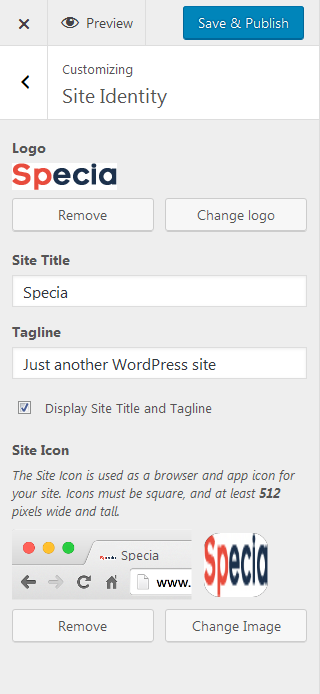
Add your own image logo. If you haven’t prepare your logo, you can display text as a logo. Read this tutorial.
1. Setup Your Logo
Locate – WordPress Menu > Appearance > Customize > Site Identity
Add your Logo , Site Favicon, Site Tagline.
Hello Specia’s User,
If you have an any query, Kindly create a ticket here. https://specia.ticksy.com
Add your own image logo. If you haven’t prepare your logo, you can display text as a logo. Read this tutorial.
Locate – WordPress Menu > Appearance > Customize > Site Identity
Add your Logo , Site Favicon, Site Tagline.
Display your contact info details with email and contact number.
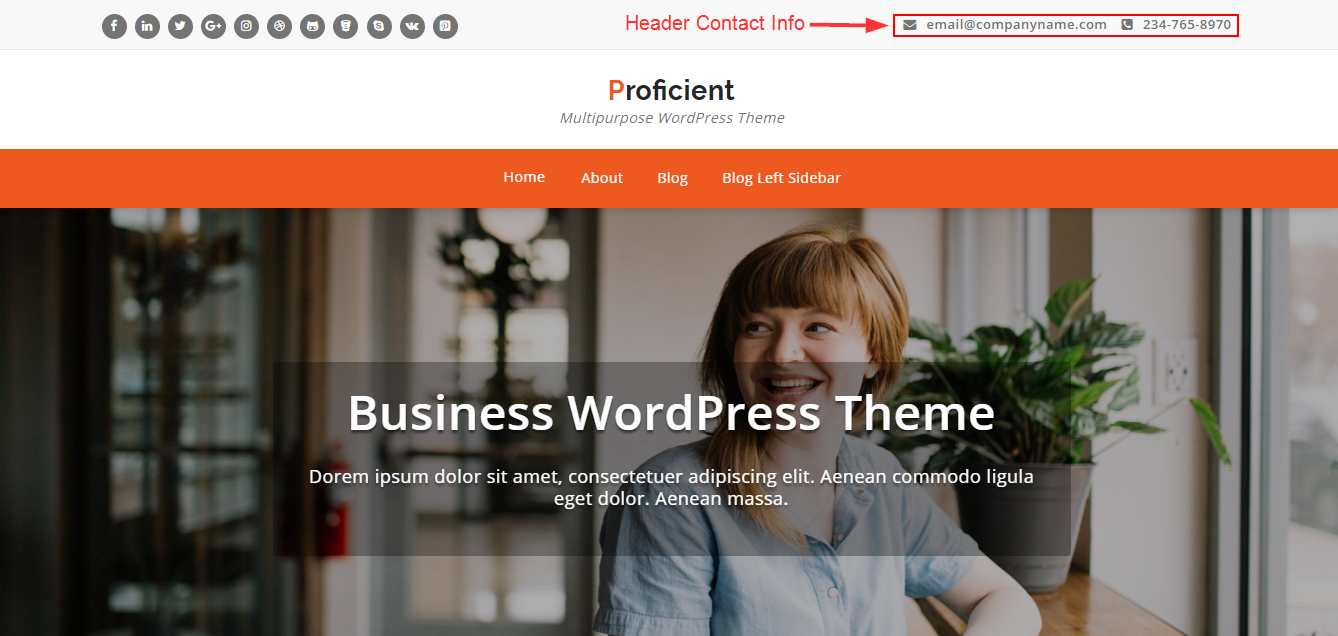
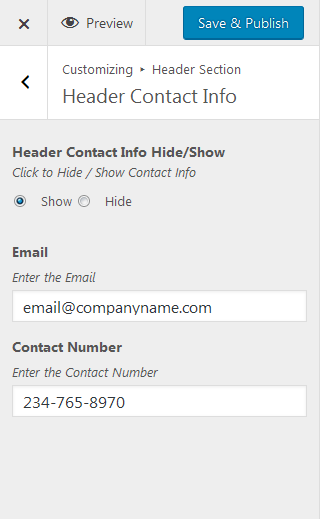
Locate – WordPress Menu > Appearance > Customize > Header Section > Header Contact Info
Enter details than Save & Publish. You can Hide / Show this section using Header Contact Info Hide/Show setting.
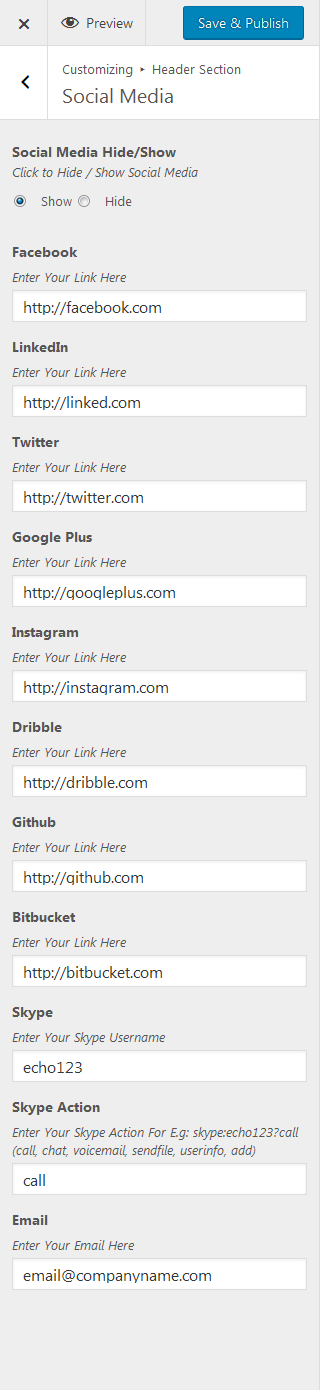
Display your social media icons set. We have popular social icons covered in this theme.
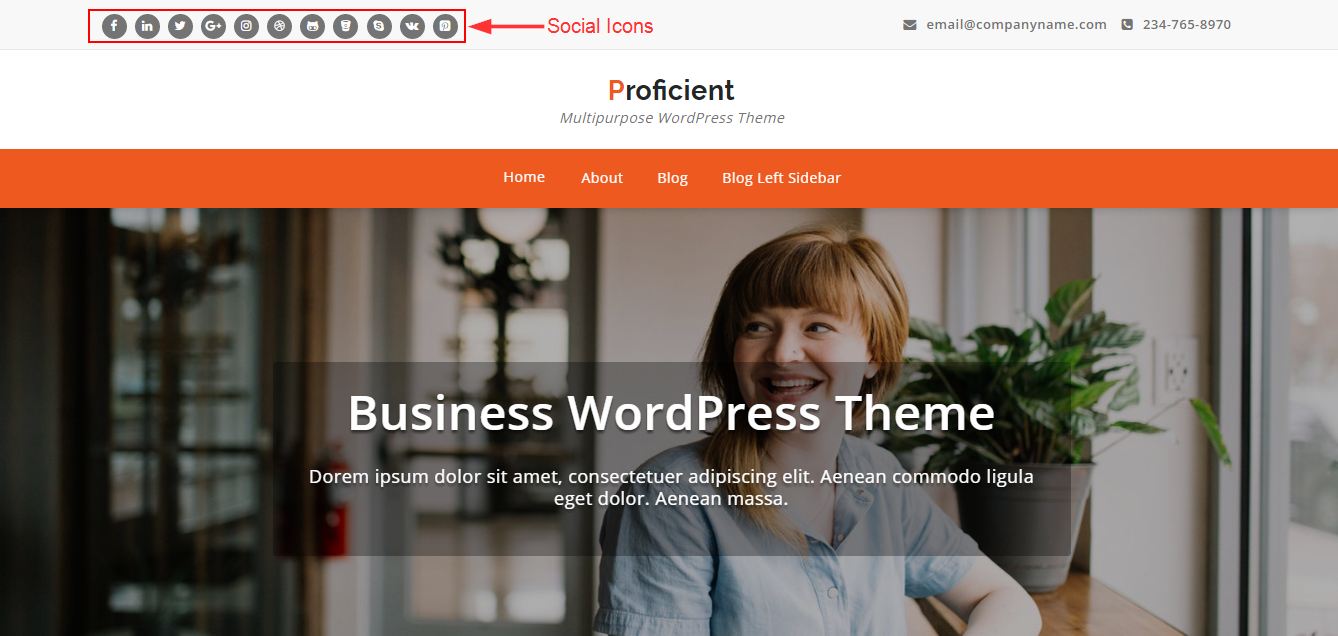
Enter your social medial icons link for all icons set. If you don’t want to show specific icon, leave it blank and also you can hide social media icons set using Hide / Show setting.
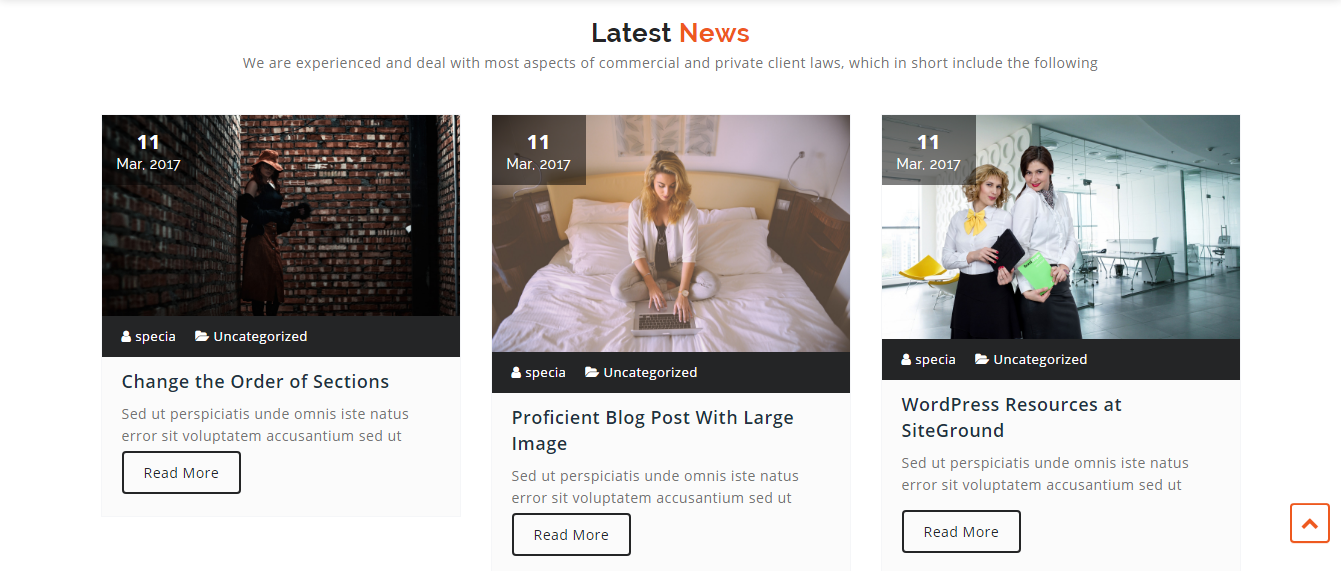
Display your 3 latest posts in this section.
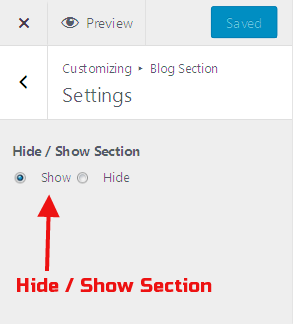
 1. Blog Section Hide / Show –
Locate – WordPress Menu > Appearance > Customize > Blog Section > Settings
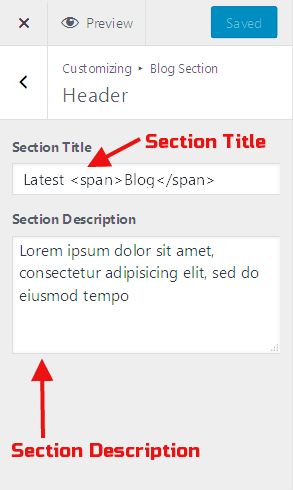
2. Blog Section Title & Description –
Locate – WordPress Menu > Appearance > Customize > Blog Section > Header
2. Display posts in section –
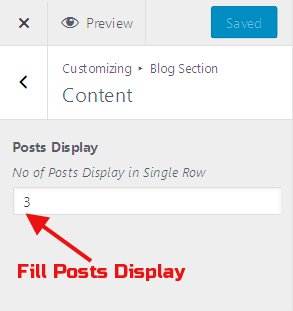
Locate – WordPress Menu > Appearance > Customize > Blog Section > Content
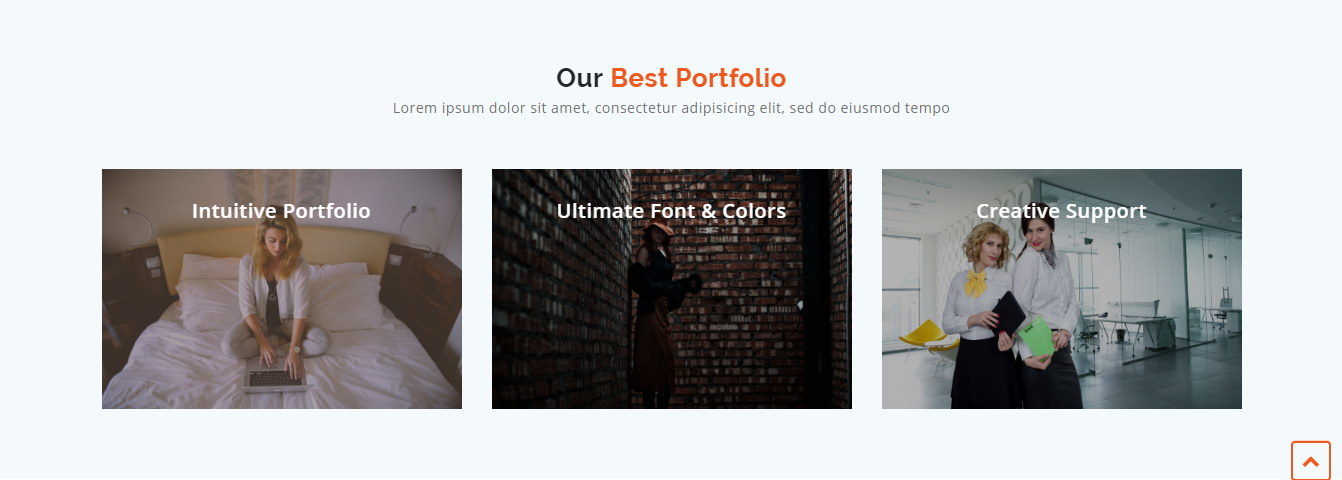
Show your work in Portfolio section. You can add only 3 portfolios in the free theme. In the premium version, you will filterable portfolio.
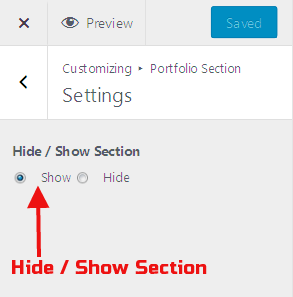
 1. Portfolio Section Hide / Show –
Locate – WordPress Menu > Appearance > Customize > Portfolio Section > Settings
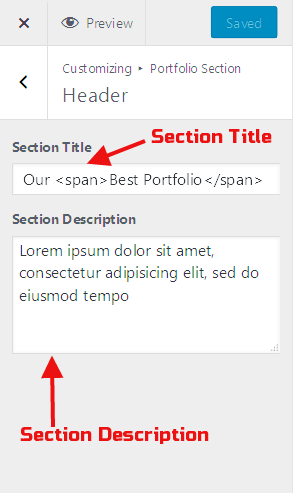
2. Portfolio Section Title & Description –
Locate – WordPress Menu > Appearance > Customize > Portfolio Section > Header
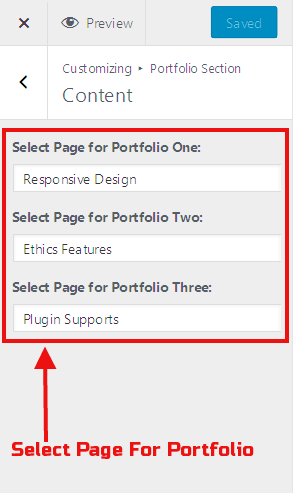
3. Display Portfolios in Portfolio Section –
Locate – WordPress Menu > Appearance > Customize > Portfolio Section > Content
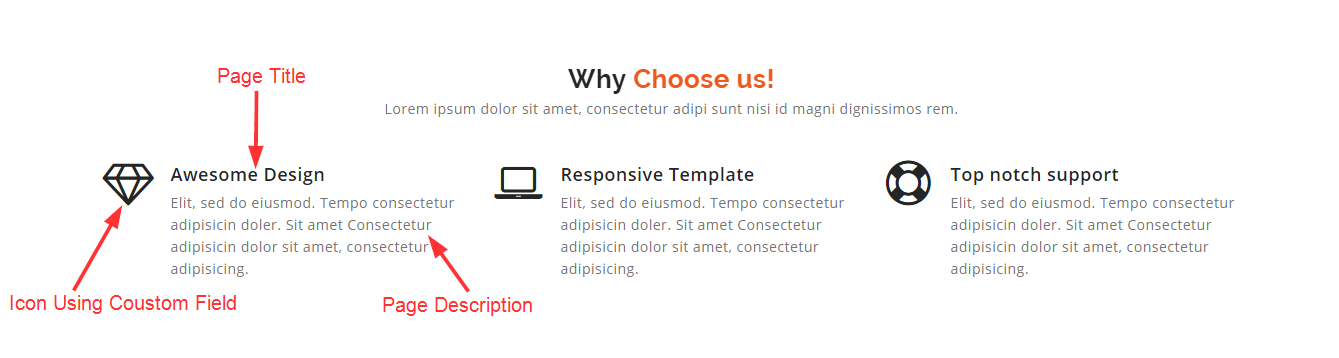
Specia theme provides you an awesome service features. Display your services with icons and images.
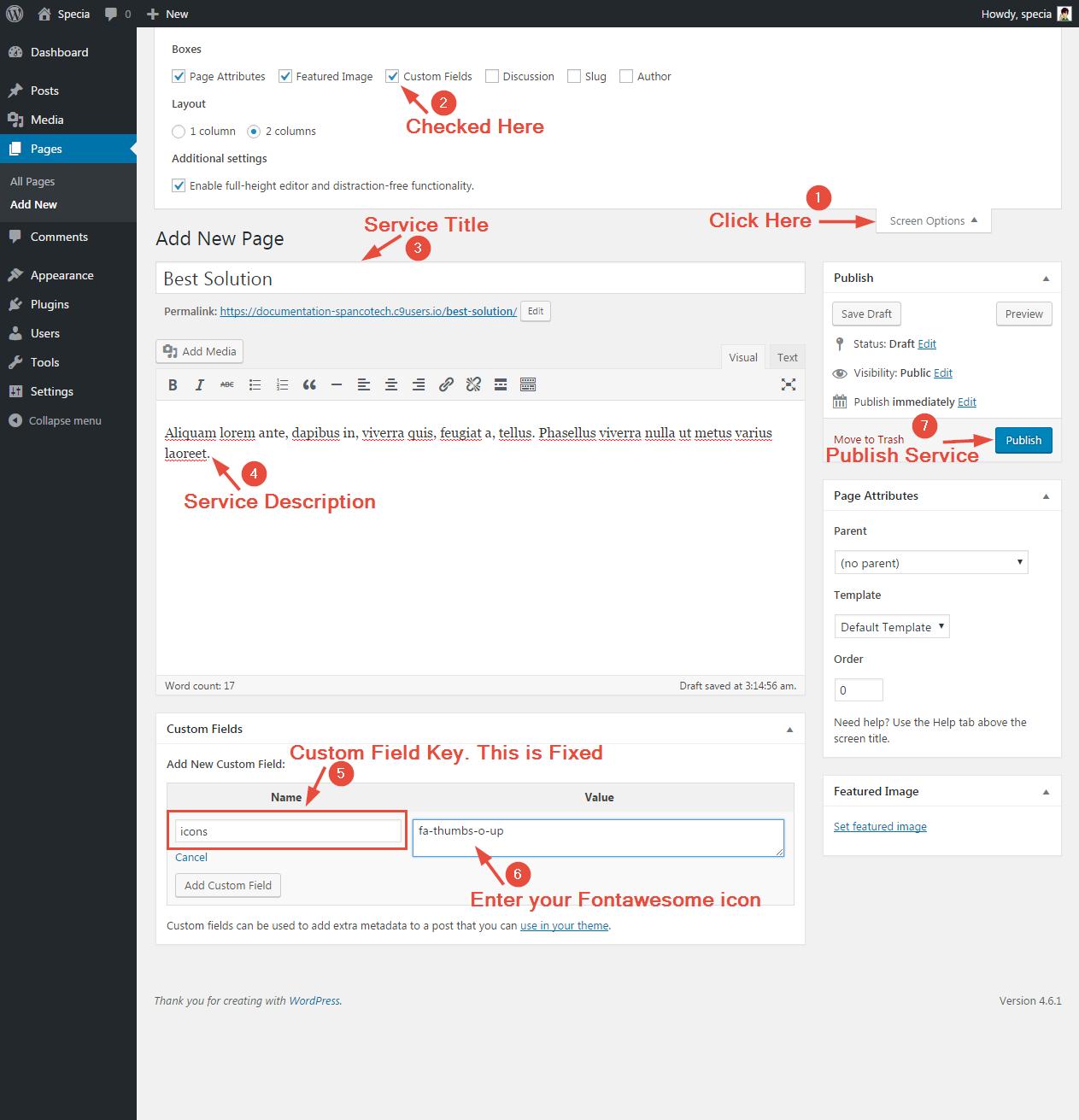
Locate > WordPress Menu > Pages > Add New
Create a page for the service. Display your services with service title, service icon and service description.
Custom field key is fixed for display service icon. You can find more icons here
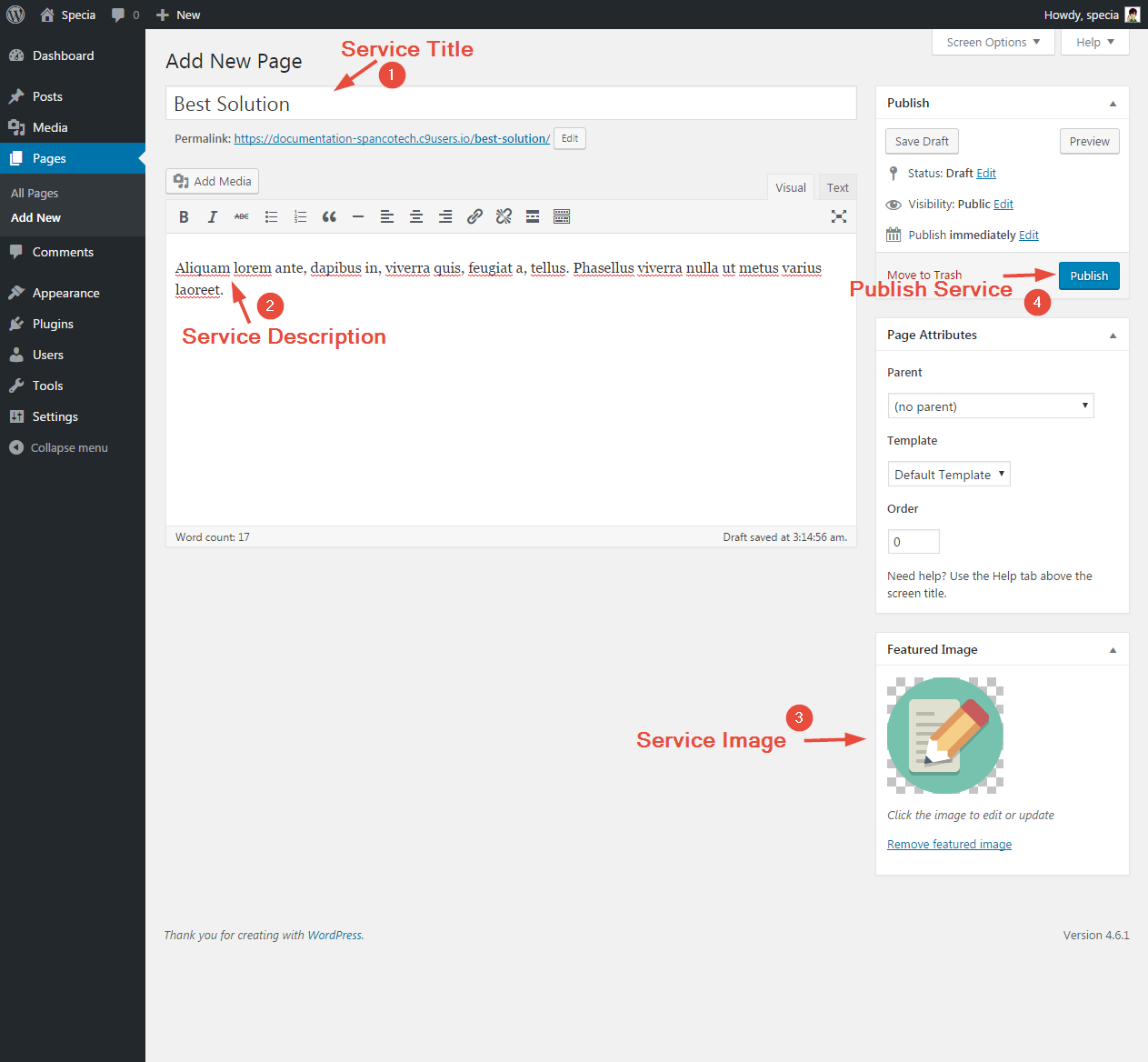
Locate > WordPress Menu > Pages > Add New
Create a page for the service. Display your services with service title, service image and service description.
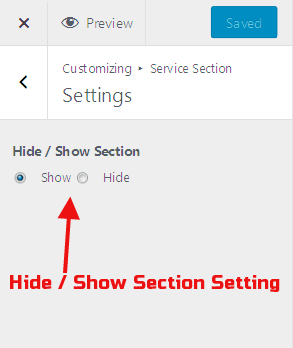
1. Service Hide / Show –
Locate – WordPress Menu > Appearance > Customize > Service Section > Settings
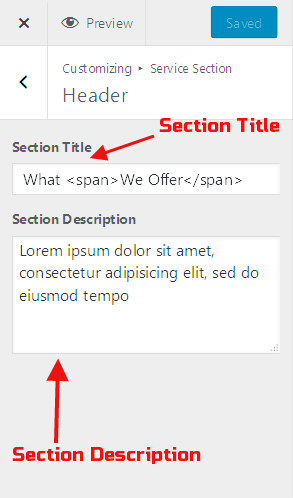
2. Add Service Section Title & Description –
Locate – WordPress Menu > Appearance > Customize > Service Section > Header
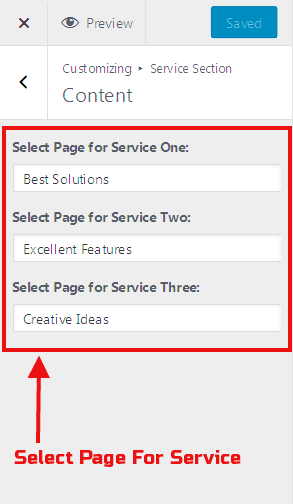
3. Display service in Service Section –
Locate – WordPress Menu > Appearance > Customize > Service Section > Content
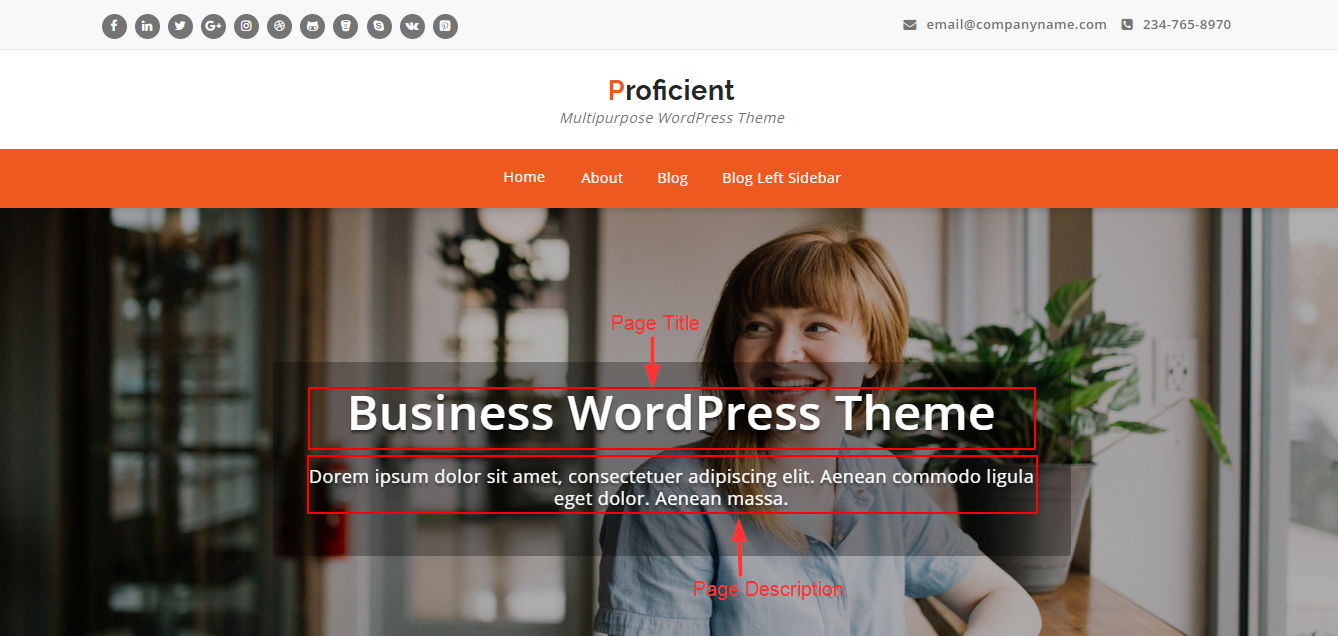
Awesome slider included in this theme. You can add only 3 slides. In this slider you can display title, description, image and read more button.
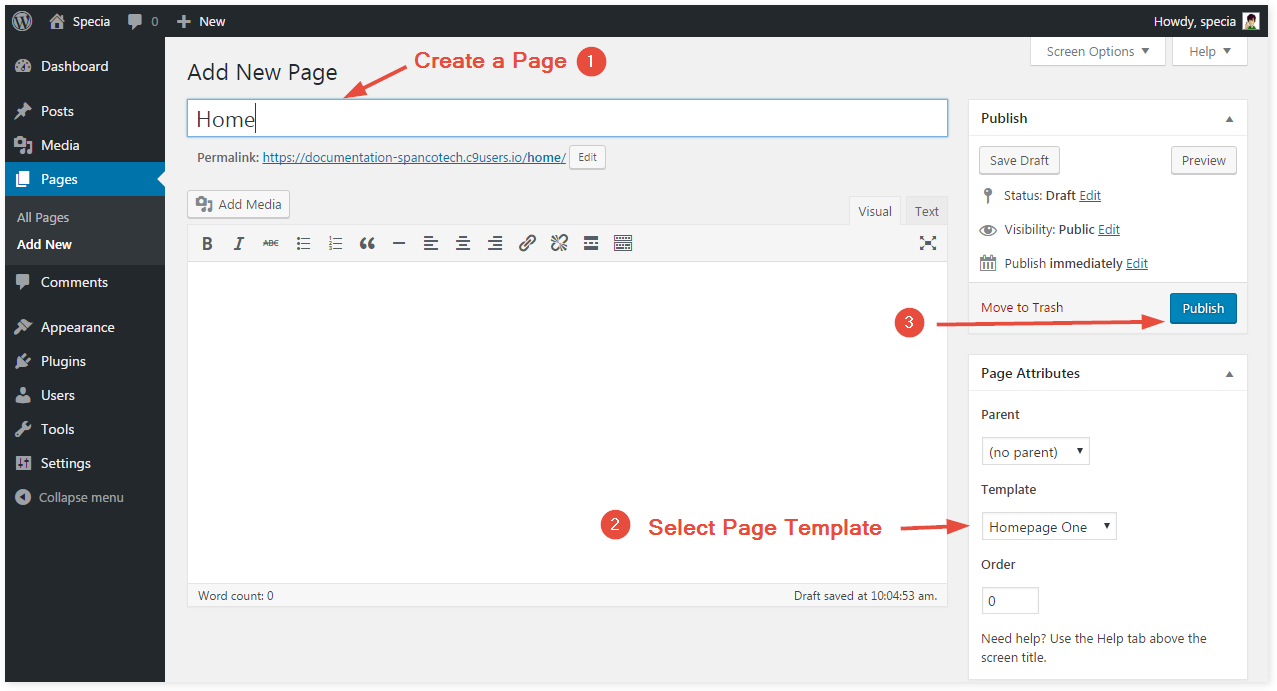
Locate – WordPress Menu > Pages > Add New
You can create a Slide using page. In this slide, you can enter page title, page description, thumbnail image and read more button using custom field.
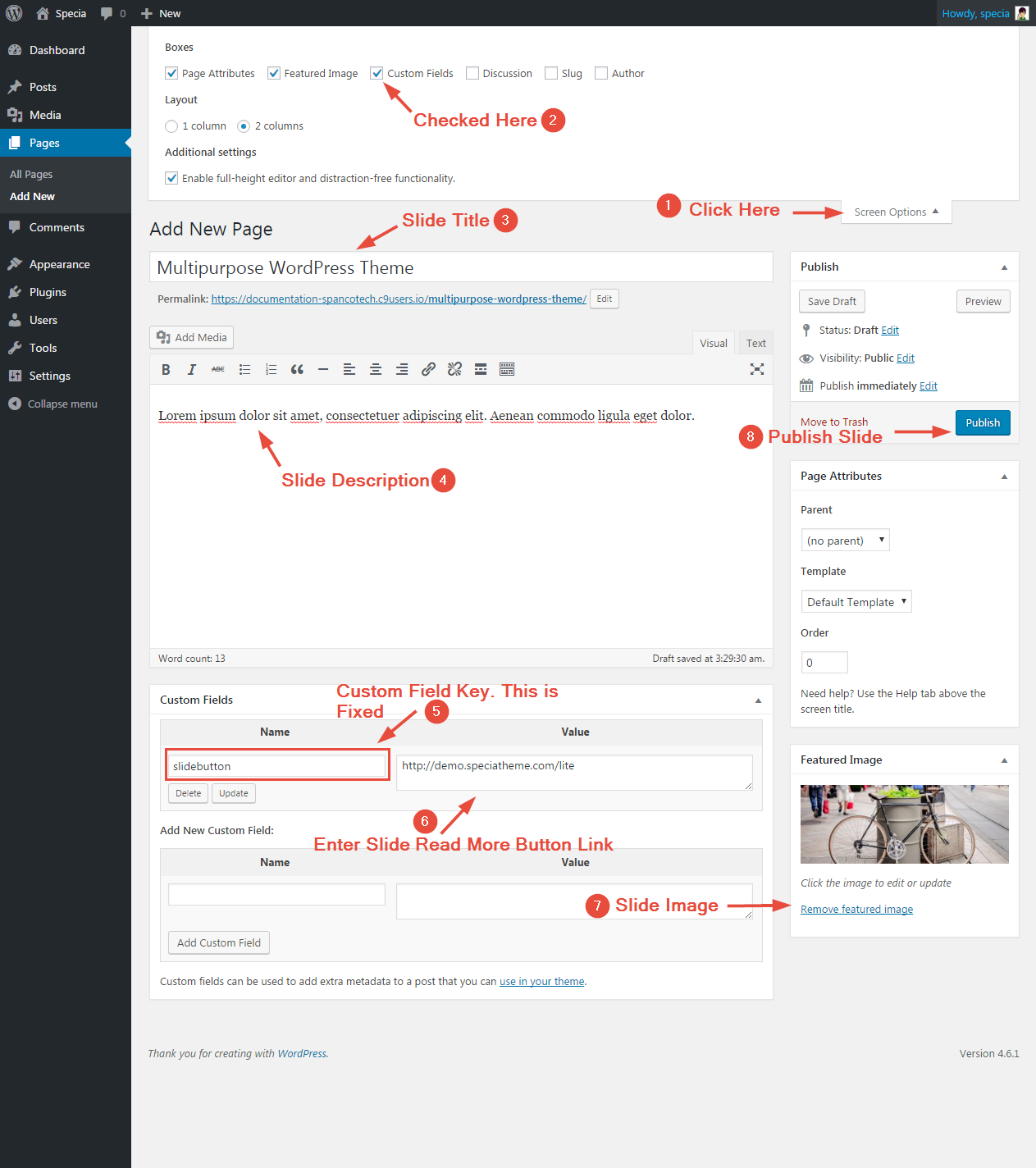
Select your slide in the slider using theme Appearance Customize Settings. In this setting, you can select your slide’s pages, Hide / Show settings and Background Overlay Color.
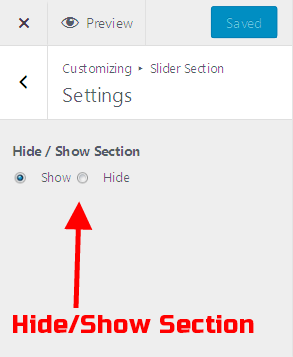
1. Slider Hide / Show –
Locate – WordPress Menu > Appearance > Customize > Slider Section > Settings
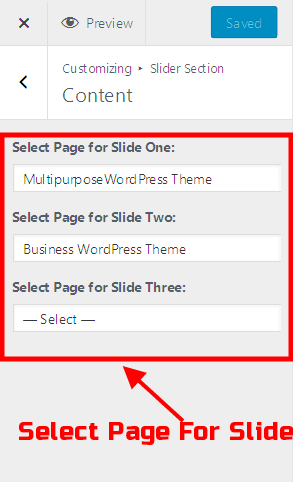
2. Adding Slides in the slider –
Locate – WordPress Menu > Appearance > Customize > Slider Section > Content
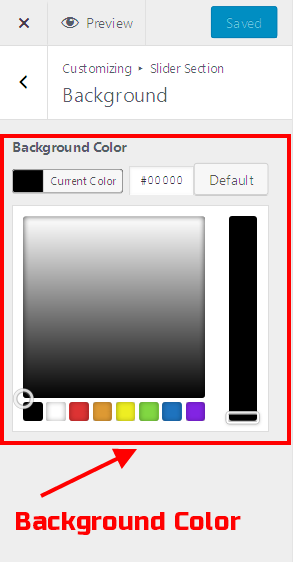
3. Change Slider Background Overlay Color –
Locate – WordPress Menu > Appearance > Customize > Slider Section > Background